The Safest Place to Store Your Data Has No Wi-Fi.
There is a piece of hardware that costs less than a dinner out, fits in your pocket, requires no subscription, cannot be hacked remotely, and gives you complete ownership of everything stored on it. It has no cloud sync. No company has access to it. No breach can reach it unless someone physically takes it from you.
It is a removable SSD. And most people have never seriously considered owning one.
In the previous post we covered data breaches, cloud vulnerabilities, and the case for local backup. This post is the practical follow-up — what local backup actually looks like, why a removable SSD is the right tool for most people, and how to use one properly so your data is genuinely protected rather than just technically stored somewhere.
What Is a Removable SSD?
SSD stands for Solid State Drive. Unlike traditional hard drives which use spinning magnetic platters, an SSD stores data on flash memory chips — the same technology inside your phone. There are no moving parts, which makes SSDs faster, more durable, more compact, and more resistant to physical damage than older hard drives.
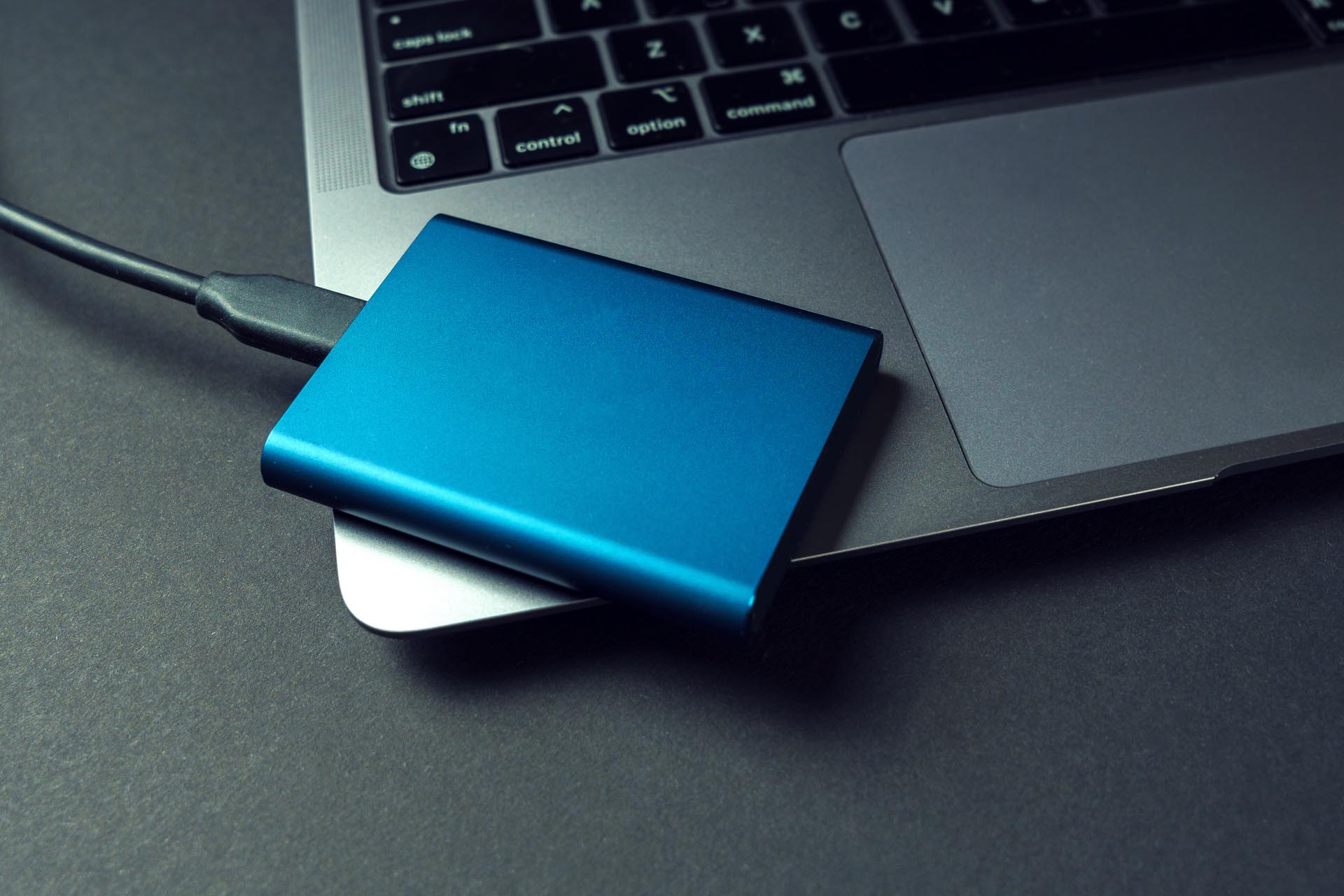
A removable SSD — also called a portable or external SSD — is a small, self-contained unit that connects to your computer via USB. You plug it in, transfer your files, unplug it, and put it somewhere safe. When it is unplugged, it is completely offline. No network connection. No exposure to remote attacks. No third party involved.
An attacker on the other side of the world can breach a cloud server in seconds. They cannot reach a drive sitting in your desk drawer.
Why Offline Is the Safest State for Backup Data
Every device connected to the internet is a potential attack surface. Your computer, your phone, your router, your smart home devices — all of them have an address that can be reached by someone who knows what they are doing. Cloud storage is permanently connected and therefore permanently exposed.
A drive that is physically disconnected from everything has no attack surface. There is nothing to probe, nothing to exploit, no credentials to steal. The data is inert. The only way to access it is to have it in your hand.
This is why security professionals use air-gapped systems — computers that have never been and never will be connected to any network — for the most sensitive operations. You do not need that level of security for personal backup. But the underlying principle is the same: the safest data is data that cannot be reached remotely.
Ransomware — malicious software that encrypts all your files and demands payment for the key — has become one of the most common forms of cybercrime. It spreads through networks and connected devices. A backup drive that is unplugged when you are not actively using it cannot be encrypted by ransomware. Your files remain intact regardless of what happens to your main device.
SSD vs Traditional Hard Drive — What Is the Difference?
Both SSDs and traditional hard drives will serve as local backup. But there are meaningful differences worth understanding before you buy.
Durability. Traditional hard drives have spinning platters and moving read/write heads. Drop one at the wrong angle and it can fail immediately. SSDs have no moving parts and are significantly more resistant to physical shock. For a drive you are going to carry around or store in a drawer, this matters.
Speed. SSDs transfer files significantly faster than traditional hard drives. A backup that once took twenty minutes takes two. This matters because people are more likely to actually perform backups when they are not an ordeal.
Size. A modern portable SSD is roughly the size of a credit card and a few millimeters thick. It fits in a wallet, a pocket, or a small pouch. Traditional hard drives are larger, heavier, and less convenient to store securely.
Price. SSDs are more expensive per gigabyte than traditional hard drives. A 1TB portable SSD costs in the range of $60 to $100 depending on brand and speed. A 2TB traditional portable hard drive can cost less than $60. For most personal backup purposes, 1TB of SSD storage is more than sufficient and the price difference is negligible against the value of the data you are protecting.
Longevity. Both types of drive have a finite lifespan. SSDs are generally rated for a certain number of write cycles before performance degrades. For backup purposes — where you are writing to the drive periodically rather than continuously — a quality SSD should remain reliable for many years.
What to Look For When Buying
You do not need the fastest or most expensive drive on the market for backup purposes. You need something reliable, properly sized, and ideally hardware-encrypted. Here is what to prioritize:
Hardware encryption. Some portable SSDs include built-in AES 256-bit hardware encryption. This means the data on the drive is encrypted at the hardware level — if someone steals the drive, the data is unreadable without the correct password. The Samsung T7 Shield and SanDisk Extreme Pro are examples of drives with hardware encryption built in. This is worth paying for.
Capacity. For most personal users, 1TB is more than sufficient for documents, passwords, photos, and important files. If you are backing up a large media library, 2TB gives comfortable headroom.
Reputable brand. Samsung, SanDisk, Crucial, and WD are established manufacturers with long track records. Avoid unbranded drives from unknown sellers — the savings are not worth the reliability risk when the drive contains your most important data.
USB-C connectivity. Modern drives connect via USB-C, which is faster and more universally compatible than older USB standards. Make sure the drive includes a USB-C to USB-A adapter if your computer does not have USB-C ports.
How to Use It Properly
Owning a backup drive and actually having a reliable backup are two different things. Here is the practice that makes the difference:
Back up regularly. A backup from six months ago is not a backup — it is an archive. Set a schedule and stick to it. Once a week for active files, once a month for a full system backup is a reasonable starting point for most people.
Keep it unplugged when not in use. A drive that is permanently connected to your computer provides less protection than one that is only connected during the backup process. Plug in, back up, unplug. That is the discipline that makes offline backup genuinely offline.
Store it separately from your computer. A backup drive kept next to the device it is backing up can be lost in the same fire, flood, or theft. Even storing it in a different room adds meaningful protection. Storing it at a second location — a family member’s home, a safe deposit box — is the professional standard.
Consider two drives on rotation. Keep one drive at home and one offsite. Alternate which you update. This way you always have a recent backup that cannot be affected by anything that happens to your primary location.
Verify your backups. Periodically open the drive and confirm that the files you expect to be there are actually there and accessible. A corrupted backup is not a backup.
Owning a backup drive feels like protection. Actually performing regular, verified backups to an unplugged drive stored separately from your computer — that is protection. The difference between those two things is everything.
The internet has made it possible to lose everything digital in a single incident — a breach, a ransomware attack, a hardware failure, a stolen device. A removable SSD costs less than most people spend on a single evening out. The data it protects is irreplaceable. That calculation is not complicated.